


Working from home sounds amazing—no commute, no office dress code, and coffee just the way you like it. But then reality hits. The internet freezes during a client call, your laptop crawls like it’s stuck in 2005, and you’re suddenly praying the power doesn’t cut out before you hit “send.”
Remote work is great when everything runs smoothly, but tech hiccups can turn a good day into a stressful one. The truth is, a successful work-from-home setup goes beyond having a laptop and a chair. You need the right tools to stay connected, productive, and sane.
This guide covers the essentials—from internet speed to security—so you can create a setup that works as hard as you do.
1. High-Speed and Reliable Internet
Your internet connection is the foundation of your work-from-home setup. A slow or unstable connection can easily turn a productive day into a stressful one—think frozen video calls, stalled uploads, and deadlines creeping closer.
A good benchmark for remote work is at least 25 Mbps download speed, especially if your tasks involve video conferencing and large file transfers. But if you want things to run extra smooth, higher speeds are the way to go. Personally, I use PLDT, and it gives me over 200 Mbps consistently. Here’s proof from Google’s speed test:
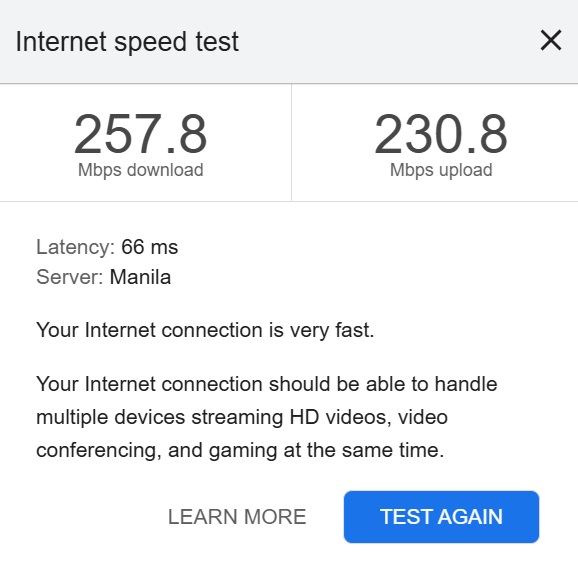
Today’s speed test, August 17
Download: 257.8 Mbps | Upload: 230.8 Mbps.
With this speed, multiple devices can stream, join video calls, and handle cloud-based tasks without any hiccups.
Of course, things happen. When PLDT goes down (it happens to the best of them), I switch to Globe mobile data, which gives me around 25 Mbps. Not blazing fast, but good enough to finish my tasks and keep things moving.
If possible, go wired with an Ethernet cable for a more stable connection. If you’re stuck with Wi-Fi, a mesh system can help eliminate dead zones.
2. A Capable Computer or Laptop
Your laptop or desktop is your main workhorse, so it needs enough power to keep up with your tasks. A sluggish machine can make even simple jobs feel like running through mud.
For most remote jobs—especially if you’re juggling video calls, writing tasks, and multiple browser tabs—you’ll want at least an 8 GB RAM machine with a modern processor. Personally, I use a Lenovo laptop with an AMD Ryzen 7 4700U processor and 8 GB of RAM, and it handles multitasking like a champ. Storage-wise, mine has 238 GB, which is enough for work files, especially when paired with cloud storage for backups.
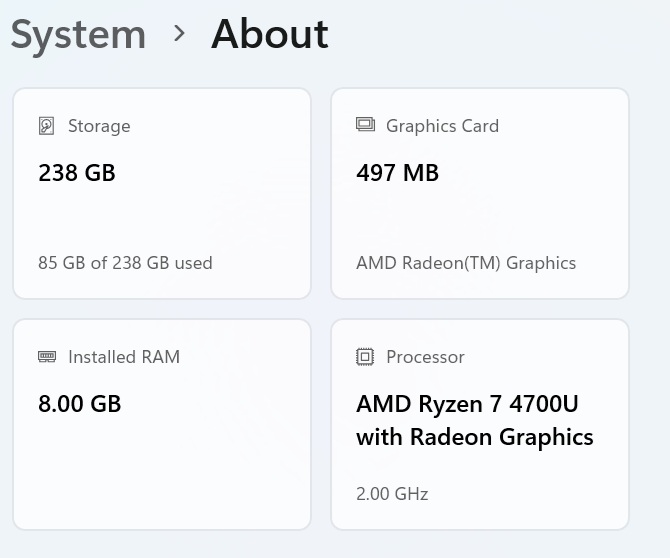
Here’s mine
My laptop is three years old, and a few keys don’t work anymore because I type a little too enthusiastically. The solution? An external keyboard that keeps me typing without drama. Honestly, it’s a small fix that makes a huge difference.

My reliable Bluetooth keyboard, I bought from Shopee
If your work involves heavy software or creative tasks like video editing or graphic design, go for more RAM (16 GB or higher) and a dedicated graphics card. But for writing, tutoring, and general remote work, a setup like mine gets the job done without breaking a sweat.
For extra comfort and efficiency, consider adding an external monitor and an ergonomic mouse. They’ll turn a cramped laptop setup into a proper workstation—and save your neck from endless bending. Plus, that ergonomic mouse? It’s a small investment that can help keep carpal tunnel syndrome from creeping into your life.
Audio and Video Gear for Clear Communication
Clear communication is everything when you work remotely. A bad mic or a fuzzy camera can make meetings awkward and frustrating for everyone. Nobody wants to hear, “You’re on mute!” or “Your voice is cutting out,” five times in a row.
You don’t need fancy gear to sound and look professional. For me, a simple Logitech H111 headset gets the job done. It’s affordable, lightweight, and reliable for calls. As for video, I stick with my laptop’s built-in webcam—it’s not 4K cinema quality, but it’s good enough for classes and client meetings.
If your work involves hosting webinars, recording content, or presenting to big groups, upgrading to an HD webcam and a noise-canceling headset might be worth it. Otherwise, start simple and upgrade only if your work truly calls for it.
Essential Software and Apps
Working from home means relying on the right tools. For communication, apps like Zoom, Google Meet, or Microsoft Teams keep meetings smooth. For project tracking, tools such as Trello, Asana, or Notion help organize tasks without the chaos of endless emails.
Don’t forget cloud storage. Google Drive, Dropbox, or OneDrive make file sharing easy and keep backups safe. And for writing or editing, a solid office suite—like Microsoft 365 or Google Workspace—is a must.
Most companies provide these tools, so all you need to do is install them and make sure they’re updated. Start with the essentials and add extras only when necessary. Too many apps can slow you down more than they help.
Power Backup and Device Protection
Nothing kills productivity faster than a sudden power outage or a voltage surge. Imagine being halfway through a client call when everything goes dark—not fun.
To avoid that, invest in a UPS (Uninterruptible Power Supply). It gives you a few extra minutes to save your work and shut down properly when the power cuts out. For me, it’s a non-negotiable safety net.
A surge protector is another must-have. It keeps your devices safe from power fluctuations that can fry your laptop or router in seconds. A small investment now can save you from buying a new machine later.
Ergonomic Home Office Setup
Comfort isn’t a luxury—it’s a necessity. A bad setup can lead to stiff shoulders, back pain, and even carpal tunnel syndrome over time.
Start with a comfortable chair that supports your back and a desk at the right height. Your screen should be at eye level to avoid neck strain, which is where an external monitor comes in handy. Pair that with an ergonomic mouse and keyboard—your wrists will thank you later.
Good lighting matters too. Natural light is best, but if that’s not an option, a simple desk lamp or ring light can make video calls brighter and reduce eye strain.
Final Thoughts
Building a solid work-from-home setup isn’t about having the fanciest gear—it’s about choosing tools that make your day smoother and less stressful. The right choices now can save you countless headaches later. What’s the first upgrade on your checklist?
 From My Corner of the Couch